Keep the context
Read web articles beside your Obsidian notes
Read the source and write your own thoughts in the same workspace.
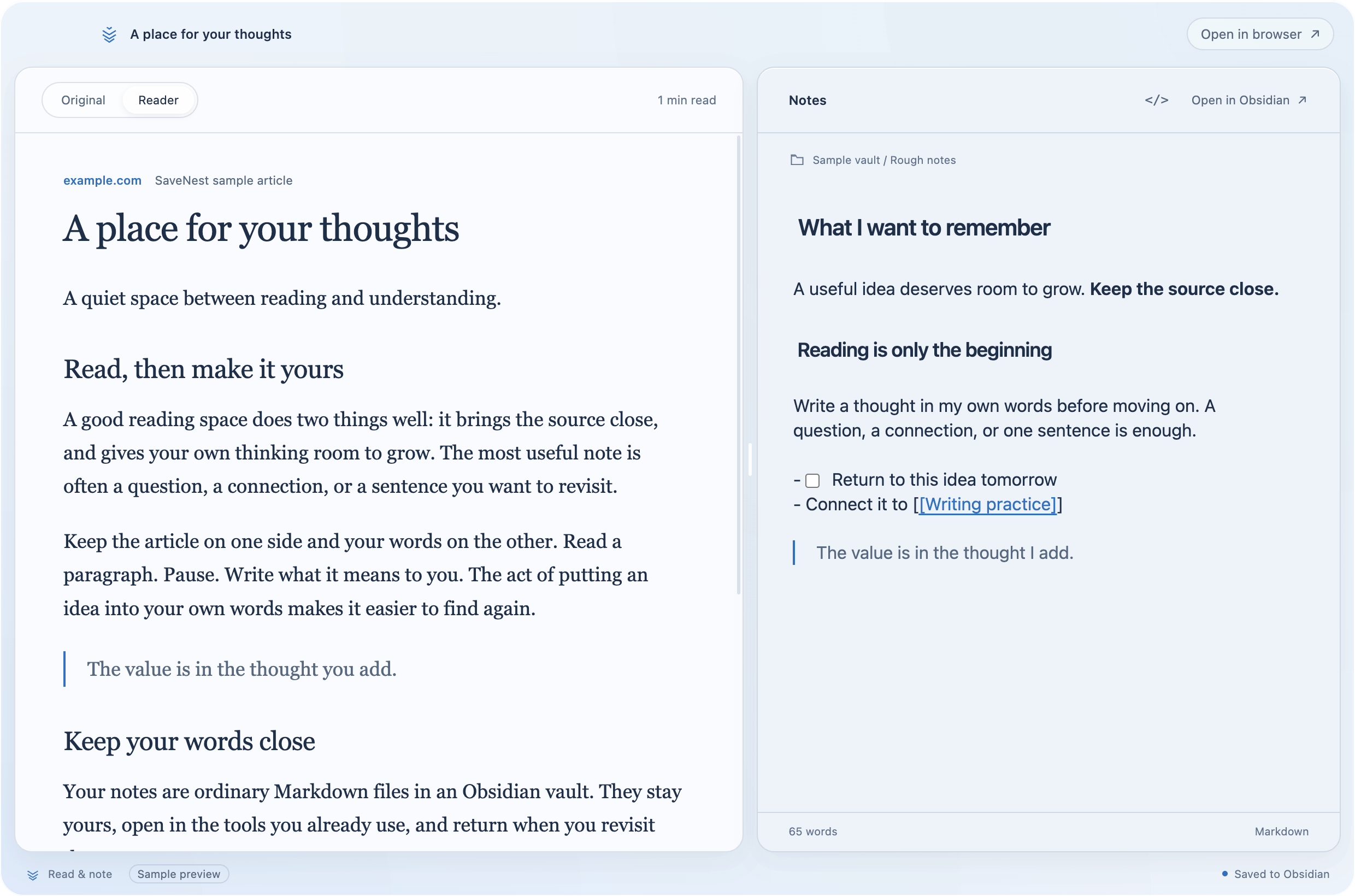
Open Read & note current tab, choose your Obsidian vault, and write beside the page.
An article stays open because you want to do something with it: capture an argument, check a claim, or write down why it matters to your project. Yet every switch between the browser and your notes makes it easier to lose the sentence you were thinking about.
SaveNest's Read & note workspace puts the webpage beside a Markdown note in your Obsidian vault. You can read and write in the same window, then continue working with that file in Obsidian. The local workflow doesn't require an account or an Obsidian plugin.
Open the article beside a note
Bring the article forward in Safari or a supported Chromium browser. Open SaveNest with ⌘O, then choose Read & note current tab. You can also use the book button beside a page in SaveNest.
The workspace opens the webpage in Original view. Choose Choose vault if you haven't connected an Obsidian vault yet, and select the vault folder where you want to keep your notes. SaveNest uses the vault's configured new-note folder, or a SaveNest folder when there isn't a fixed destination.
Opening a page doesn't create an empty note. Start writing when you have something to keep; SaveNest then creates a Markdown file associated with that page and includes the source URL.
Drag the divider to give the article or your writing more room. On a narrow window, use the Preview and Notes tabs to switch between them.
Write what you want to remember
Begin with the reason you opened the article. For example: “I need to decide whether this method would work for our onboarding.” That sentence gives your note a purpose before you collect details.
As you read, explain an idea in your own words. Add a short quotation only when the wording matters, and separate the author's claim from your response. If you disagree, write down what evidence would change your mind.
You don't need to capture every paragraph. A useful note might contain one decision and the passage that informed it. SaveNest provides a place to write beside the source; you choose what deserves a place in your vault.
Use Reader when it helps
Original keeps the website's presentation. It opens in a separate temporary web session, so your existing browser login doesn't carry over. If the page needs a login or won't display correctly, choose Open in browser.
The optional Reader view extracts article text from the selected browser tab. Extraction depends on the website and browser access, so some pages won't work. Reader may require your browser's Allow JavaScript from Apple Events setting; you can keep using Original or your browser if you prefer not to enable it.
Reader leaves images unloaded until you choose Load images. Switching views keeps your note available. You can return to Original when a diagram, layout, or other part of the webpage matters to what you're reading.
Check the save state before moving on
Notes save after a short pause, when you press ⌘S, and before closing the workspace. Check the footer's save status before leaving. Open in Obsidian opens the saved file, and clicking its location reveals it in Finder.
If the same file changes in Obsidian while you have unsaved edits in SaveNest, the workspace asks you to resolve the difference. You can reload the version on disk or save your writing as a separate copy. Resolve that prompt before assuming both apps contain the same text.
Existing SaveNest quick notes remain separate from these Markdown files. Use Copy quick note when you want to bring a quick note into the document.
Close the tab when the work has a home
After saving your note, decide whether you still need the page open. Keep it if you're actively checking something. Otherwise, the note's source URL gives you a route back, and you can save the link in your SaveNest library for later search.
Back up your Obsidian vault using your usual backup process. SaveNest's JSON library exports don't include the Markdown files in that vault. Any vault syncing comes from a service you configure separately. See SaveNest's privacy page for how the reading workspace handles pages and notes.
If unfinished reading keeps turning into a wall of tabs, our guide to managing too many open tabs connects saving, reading, and closing into one routine.
Related reader question: What do you use to take notes while browsing? on Reddit.