Find a page
How to search Safari and Chrome tabs together on Mac
One search when you cannot remember which browser has the page.
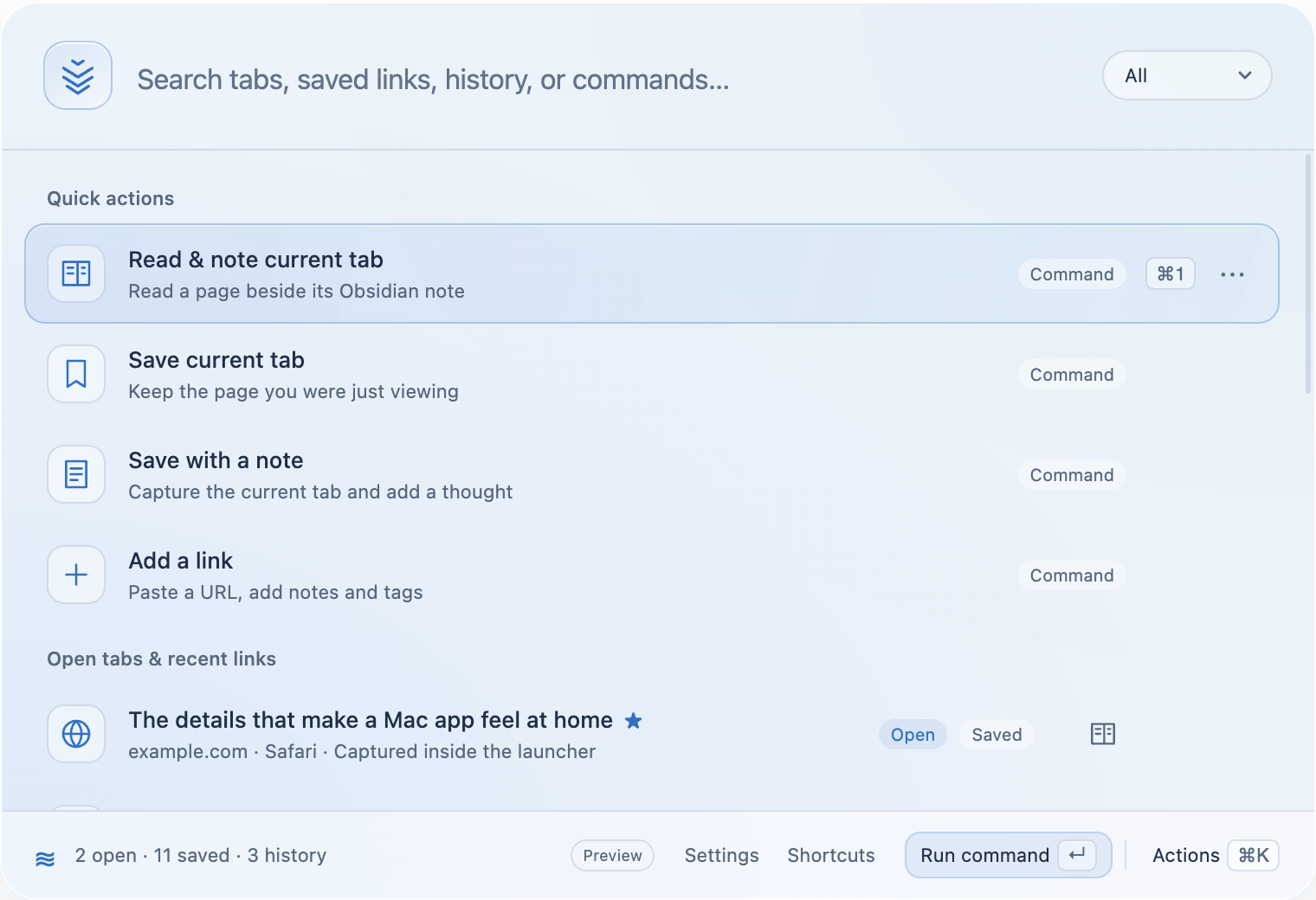
Press ⌘O, choose Search open tabs, and type a title word or website address.
If you use Safari for some work and Chrome for everything else, remembering which browser contains a page becomes part of finding it. Add several windows and the tab titles shrink until none of them help.
SaveNest gives you one search for supported browsers on your Mac. Press ⌘O, type a word from the page title or its address, and select an open-tab result to switch to it. You can search saved links and recent history in the same launcher.
Search the tabs already open on your Mac
- Open SaveNest. If you haven't installed it, download the Mac preview. Local features are free and don't need an account.
- Press ⌘O to bring up the launcher. If you've changed that shortcut, use your configured one.
- Type Search open tabs and run the command to limit the results to open pages. Then enter a distinctive title word or a domain such as
github.com. - Use the arrow keys to choose a result and press Enter. SaveNest switches to the existing tab instead of treating it as a new saved link to open.
On first use, macOS may ask whether SaveNest can control a browser. That Automation permission lets the app read supported tabs and switch to them. If you denied it earlier, check System Settings → Privacy & Security → Automation, then retry.
Search a short, distinctive word first. A page called “Migration checklist for the website” is easier to distinguish with migration than with website. If the title is unhelpful, the domain can narrow the list.
Choose the right search scope
The default Search all pages scope combines several sources. That's useful when you remember a page but can't remember whether it's still open. It can also produce more results than you want.
Search open tabs is for switching to something that's open now. Search saved links is for pages you've deliberately kept in your library. Search browser history looks through recent local history when the page was visited but never saved. You can find each scope through the launcher or ⌘K Actions.
This distinction answers a recurring frustration in a Reddit question about searching Safari tabs and windows: people sometimes want only open tabs, without other suggestions mixed in.
SaveNest's history search has limits. It reads supported local browser history sources and recent records; it isn't a complete archive of every page you've ever visited. Private browsing, deleted history, unavailable profiles, and access permissions can leave a page out.
Keep useful pages without keeping every tab open
When you've found an open page you want to keep, select it and use ⌘S or ⌘K → Save to library. The link becomes something you can retrieve after the browser tab closes.
For pages you need to act on, add a quick note with words you'll recognise later. For example, “Check the export format before choosing this tool” tells you more than a bookmark labelled “Features.” Saved notes and tags give search more useful context than the website's title alone.
Saving a page from a search result doesn't require moving your entire browser setup into a new browser. Your existing tabs stay in their browsers. If a window needs a larger cleanup, follow the guide to saving open tabs.
What Safari and Chrome support means
Safari and Chrome are supported for open-tab search and capture. SaveNest also has adapters for several Chromium browsers, including Brave, Edge, Arc, Vivaldi, Chromium, and Opera. Browser scripting support and macOS permissions affect what the app can access.
Hidden Safari tab groups and embedded browser views aren't included in open-tab search. Firefox doesn't expose the same tab interface, so SaveNest doesn't search its live tabs through these adapters. You can still paste a Firefox page's URL into SaveNest, and supported Firefox history sources can appear separately in history search.
If a page is missing, make sure its browser window is available, check Automation permissions, and run Refresh tabs and history. For history, Browser history sources shows available profiles and access errors. These checks are more useful than assuming every missing result was deleted.
Search before you open another tab
Try this on the next page you almost search for twice: press ⌘O, enter its domain, and look at the open results first. If it isn't open, switch to saved links or history.
You can keep several browsers and still have one place to start looking. When finding old work feels dependable, closing a crowded window becomes a smaller decision.